ユーザーが登録に成功したらすぐにサイトにアクセスできるようにするのではなく、正当なユーザーであることを手動で検証したいとします。このような場合は、WP-Members™ を使用するとユーザーがアクセスする前に管理者によって「有効化」される必要があるため、登録を管理できます。
原文を見る
Suppose that you do not want users to have instant access to the site upon a successful registration, but rather, you want to manually validate that you have legitimate user. In these types of cases, WP-Members™ allows you to moderate registrations, requiring that the user be “activated” by an administrator prior to having access.
https://rocketgeek.com/plugins/wp-members/docs/registration/moderating-registration/
ユーザーを有効化 & 無効化する
ユーザーは、ユーザーの詳細ページで個別に有効化することも、「ユーザー > ユーザー一覧」ページを使用して一括で有効化することもできます。
原文を見る
Users can be activated individually on the User Detail page, or in bulk using the Users > All Users page.
https://rocketgeek.com/plugins/wp-members/docs/registration/moderating-registration/
ユーザー > ユーザー一覧の画面から有効化/無効化する
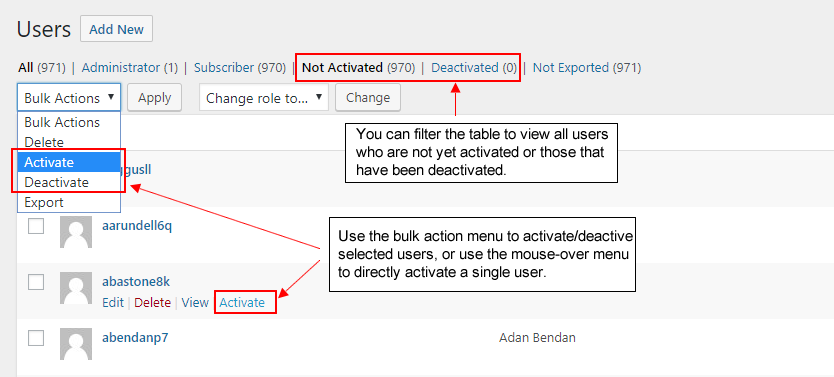
「ユーザー > ユーザー一覧」画面からいくつかの方法でユーザーを管理できます。まず、一括アクションメニューを使用して、画面上で選択したユーザーの有効化と無効化の両方を行うことができます。また個々のユーザーを有効化するためのマウスオーバーメニュー項目もあります。テーブルの上部にあるフィルターリンクには、有効化が保留されているユーザーや無効化されているユーザーのみを表示するように画面をフィルターするためのオプションがいくつかあります。これにより、有効化を一括で行う場合に有効化が必要な全てのユーザーを簡単に表示できます。
原文を見る
You can manage users from the Users > All Users screen in several ways. First, you can use the bulk action menu for both activation and deactivation of any selected users on the screen. There is also a mouse-over menu item to activate individual users. In the filter links at the top of the table, there are some options for filtering the screen to show only those users who are not activated, or users who are deactivated. This gives you an easy way to bring up all users requiring activation if you generally do activation in bulk.
https://rocketgeek.com/plugins/wp-members/docs/registration/moderating-registration/
ユーザープロフィール画面から有効化/無効化する
個々のユーザープロフィールに移動してユーザーを有効化または無効化できます。承認制登録が有効になっているのであれば、WP-Membersフィールドの下部にユーザーを有効化または無効化するためのチェックボックスが表示されます。
原文を見る
You can go to the individual user profile to activate or deactivate a user. When moderated registration is activate, there will be a checkbox for activating of deactivating a user at the bottom of the WP-Members fields.
https://rocketgeek.com/plugins/wp-members/docs/registration/moderating-registration/
通知
この設定をオンにした場合は、新規登録のたびにサイト管理者(サイト管理者は[設定 > 一般] で設定できます) に電子メールを送信する「管理者に通知」もオンにすることをお勧めします 。 「管理者に通知」はWordPress の一般設定 ([一般 > 設定]) で設定されたアドレスに通知を送信します。この通知を別のアドレス(または複数のアドレス)に送信する必要がある場合は、 wpmem_notify_addr フィルターを使用してフィルタリングできます。
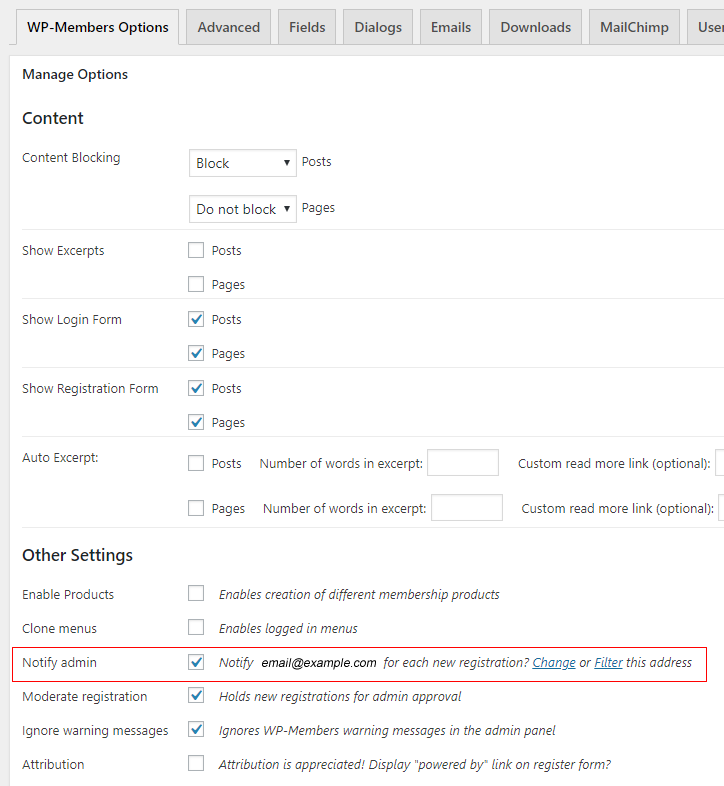
新しいユーザー登録の際に届くデフォルトの管理者通知電子メールには、ユーザープロフィールへのリンクが含まれます。これは必要に応じてメールタブで変更できます。ユーザーの有効化に関してより良い手順を開発するための手始めとして色々と変更してみるといいでしょう。
原文を見る
If you turn this setting on, it is recommended that you also turn on “Notify Admin” which will send an email to the site administrator (set in Settings > General) upon each new registration. Notify Admin will send a notification to the address set in the WP General Settings (General > Settings). If you need this notification to go to a different address (or multiple addresses), you can filter it with the wpmem_notify_addr filter.
The default admin notification email for a new user registration will include a link to the user profile. You can change this in the Emails tab if necessary, but it gives you a good starting point for developing your preferred workflow when it comes to user activation.
https://rocketgeek.com/plugins/wp-members/docs/registration/moderating-registration/
ユーザー定義のパスワード
承認制登録を有効にしてなおかつユーザーが登録時にパスワードを選択できるようにする場合は (パスワードフィールドを使用して)、ユーザーに送信されるデフォルトの電子メールを変更する必要があります。ユーザーが登録時に自分でパスワードを作成した場合、アカウントが有効化された時にユーザーにパスワードを送信することはできません。この設定でユーザーにパスワードを電子メールで送信する場合は、デフォルトの「登録は管理されており、ユーザーは承認されています」の文面ではなく、「登録は管理されています」の文面で電子メールで送信する必要があります。これらのメールはプラグインのメールタブで編集できます。
原文を見る
If you enable moderated registration AND you allow users to choose a password when they register (using the password field), then you will need to change the default emails that are sent to the user. If users create a password when they register, you cannot send the user their password when the account is activated. If you want to email the user their password in this configuration you need to send it in the “Registration is Moderated” email, not the “Registration is Moderated, User is Approved” which is the default. These emails can be edited in the plugin’s Emails tab.
https://rocketgeek.com/plugins/wp-members/docs/registration/moderating-registration/
デフォルトメッセージ
登録成功時のデフォルトのメッセージには、登録が成功してパスワードがユーザーに電子メールで送信される旨が記載されています。これはダイアログタブの「登録完了」の項目で設定したメッセージです。サイトを承認制登録に変更する場合は、ユーザーがまだ承認待ち状態であるということが分かるようにこのメッセージを編集する必要があります。
生成されたパスワードを電子メールで送信するというデフォルトのメッセージをそのまま使用している場合は、ユーザーが承認されたらパスワードが送信されるという旨の内容にメッセージを変更したいかもしれません。ユーザーが登録時にパスワードを選択する場合は、必ず上記のセクションを確認してそれに応じて電子メールメッセージを修正してください。
原文を見る
The default message for a successful registration indicates that the registration was successful and a password will be emailed to the user. This is the “Registration completed” message in the Dialogs tab. If you switch to moderated registration, this message should be edited to reflect the fact that the user is pending approval.
If using the default of emailing a generated password, you may want this message to indicate that the password will be sent when they are approved. If users choose a password at registration, make sure you look at the above section and adjust your email messages accordingly.
https://rocketgeek.com/plugins/wp-members/docs/registration/moderating-registration/
Setting Up Moderated Registration When There Are Existing Users
現在ユーザーがいる既存のサイトで新たにWP-Members 環境をセットアップする場合はどうすればよいでしょうか? 「既存の」ユーザーと「新規」ユーザーの間に違いはありません。 – 彼らは全て単に「ユーザー」です。 したがって、あなたが誰を有効化したいのか、誰を有効化したくないのかをプラグインが知る術はありません。
ただし特に大きな問題が1つあります。ユーザーを有効化するとそのユーザーに有効化されたという通知が送信され、なおかつユーザーに初期パスワードが送信される設定になっていた場合はユーザーのパスワードは有効化時に再設定されることになります (つまり既存ユーザーを有効化すると彼らのパスワードは変更されます)。では、パスワードを変更したりユーザーに電子メールを送信したりせずに、現在の全てのユーザーを有効化された状態にするにはどうすればよいでしょうか?
こういった状況に対応するため、ユーザーを一括更新できるユーティリティスクリプトがこのサイトにあります。これは、使用しているテーマの function.php ファイルに挿入できるコピー/ペースト用のコードスニペットです。ユーザーに電子メールを送信したりパスワードに影響を与えたりすることなく、サイト上の全てのユーザーを有効化状態に設定する管理画面を提供します。
このスクリプトをfunctions.phpに追加すると、「ツール」メニューの下に「Activate All Users」というメニュー項目が追加されます。その画面に移動し、確認ボックスにチェックを入れてSubmitをクリックします。その時点での全てのユーザーが有効化状態に設定されます。 プロセスが完了したら必要に応じてコードスニペットを削除できます。
原文を見る
What if you are setting up a new WP-Members install on an existing site with current users? There is no difference between an “existing” user and a “new” user – they are all simply “users.” So there isn’t a way for the plugin to know who you want to activate and who you don’t.
One particular problem, though, is that when you activate a user it will send the user a notification that they have been activated and if current settings are to send the user their initial password, their password will be set upon activation (thus changing an existing user’s password if you activate them). So how can you put all current users in an activated state without altering passwords and/or emailing the users?
There is a utility script available on the site that allows you to mass update the users for this situation. It is a copy/paste code snippet that you can drop into your theme’s functions.php file and it will provide an admin screen to set every user on the site as activated without sending the user email and without affecting their password.
Once added to functions.php, the script will add a menu item under the Tools menu – Activate All Users. Go to that screen, check the confirmation box and click submit. All users will be set to active at that point. After you complete the process you can optionally remove the code snippet.
https://rocketgeek.com/plugins/wp-members/docs/registration/moderating-registration/