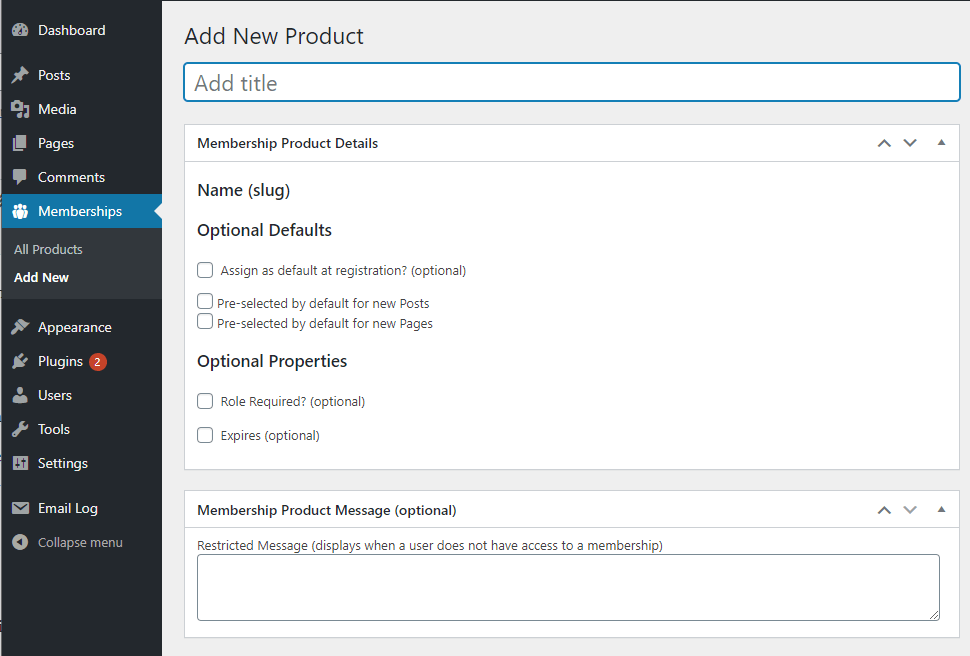
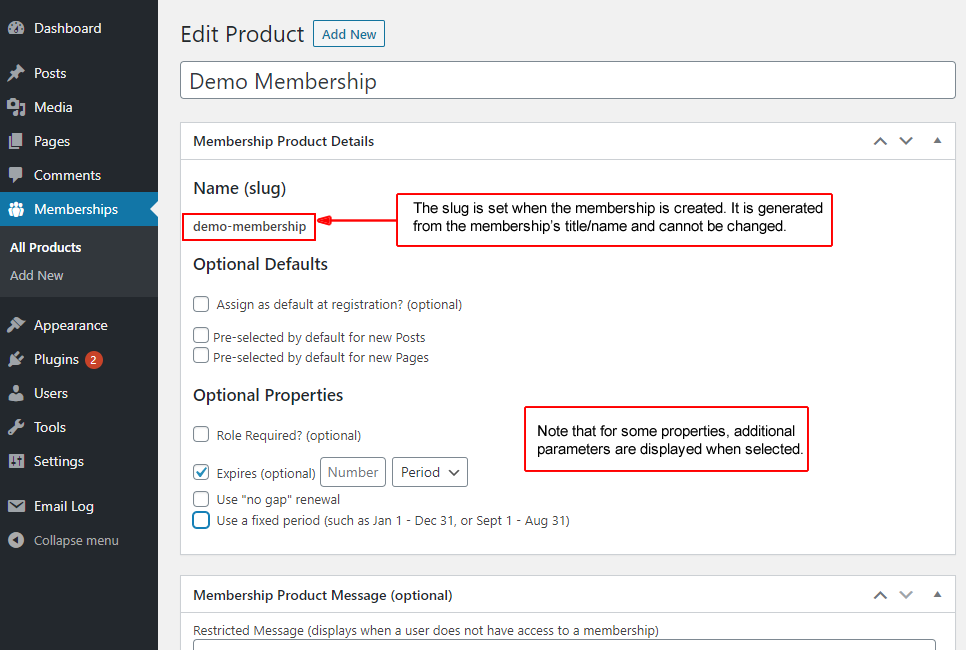
新しいメンバーシップを作成する場合や既存のメンバーシップを編集する場合、メンバーシップの詳細ページに設定できる多数のプロパティとオプションがあります。これらの多くは任意であり、選択すると追加の使用可能なプロパティが表示されるものもあります。各プロパティの機能と目的を必ず理解するようにしてください。スラグ名は自動的に設定され、変更できないことに注意してください。
原文を見る
When creating a new membership or editing an existing one, the membership detail has a number of properties and options you can set. Many of these are optional and some will display additional available properties when selected. Be sure that you understand what each property does and is intended for. Note that the slug name is set automatically and cannot be changed.
https://rocketgeek.com/plugins/wp-members/docs/membership-products/membership-properties/
デフォルト設定
デフォルト設定の項目ではメンバーシップの特定のデフォルトの使用法を設定できます。
- メンバーシップ登録時にデフォルトとして割り当てる – この設定にチェックを入れると、ユーザーの登録時にこのメンバーシップが自動的に割り当てられます。これはユーザーの登録時にメンバーシップが設定されるため、メンバーシップを販売する場合はこれを設定しないでください(WooCommerce 拡張機能の WP-Members メンバーシップ を使用する場合など)。
- {投稿タイプ}の新規投稿時にデフォルトで設定する – 指定された投稿タイプごとに、新しい投稿/固定ページ/カスタム投稿タイプを作成する時にこのメンバーシップを事前に選択したデフォルトとして設定できるため、それを毎回制限パラメータとして設定する必要はありません。 これは1つのメンバーシップに多数の投稿が紐づいている場合に便利です。
原文を見る
The Optional Defaults section allows you to set certain possible default uses of the membership.
https://rocketgeek.com/plugins/wp-members/docs/membership-products/membership-properties/
- Assign as default at registration – This automatically assigns the membership to a user when they register. This sets the membership when the user registers, so DO NOT set this if you are selling memberships (such as when using WP-Members Memberships for WooCommerce extension).
- Pre-selected by default for {post type} – For each given post type, you can have this membership set as a pre-selected default when writing a new post/page/custom post type so you do not have to remember to set it as a restriction parameter each time. This is useful if you have a lot of posts specific to a single membership.
その他の設定
権限グループと紐付ける
これを使うことで権限グループをメンバーシップにリンクし、ユーザーに指定された権限を持たせることできるようになります。
特別な理由がない限り、ユーザーをグループ化する方法として権限グループを使用することはお勧めできません(ユーザーが別のプラグインと統合するために権限グループを必要とする場合など)。メンバーシップによりユーザーは既にグループとして識別されています。権限グループは WordPress の機能を管理することを目的としており、誤認されたり誤用されたりすることがよくあります。ユーザーにデフォルトで割り当てられる権限グループ以外に権限が必要が無い場合は、これを設定しないことをお勧めします。
原文を見る
This allows you to link a role to the membership, requiring the user to have the specified role.
It is not recommended to use roles as a method of grouping users unless you have a specific reason to do so (such as the user needs the role for integration with another plugin). Memberships already identify the users as a group. Roles are intended for managing WordPress capabilities and are often misunderstood and misused. Unless you know you specifically need an assigned role for a user other than the default user role, it is best to not set this.
https://rocketgeek.com/plugins/wp-members/docs/membership-products/membership-properties/
期限
メンバーシップには有効期限を設定できます。 この項目にチェックを入れると、いくつかの追加オプションが表示されます。
ピリオド – 有効期限を使用する場合、これは必須です。 メンバーシップの有効期限が切れるまでの期間を設定してください。
当初の有効期限を起点に期限を更新する – このオプションの設定を使用すると、期限終了日から更新日までにギャップがないように設定できます。仮想アクセス製品の場合、有効期限が切れたユーザーは有効期限が切れている間はサイトにアクセスできないため、これは通常は不要です。 この設定はメンバーシップにサイト外の要素が含まれる可能性がある会員サイトに適しています。この更新方法を使用している時、更新時にユーザーの有効期限が切れている場合の更新期間は、現在の日付ではなく元の期限終了日を起点に設定されます。
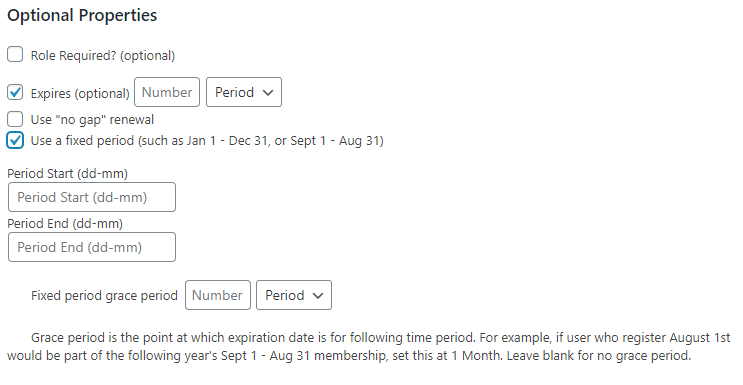
有効期間を固定する – これは「カレンダーイヤー」の有効期限を作成するためのオプション設定です。追加プロパティとして有効期限の開始日と終了日を設定し、日付はdd-mm 形式で定義する必要があります。例えば有効期間が毎年 9月1日に始まる場合、期間の開始日は 01-09 で、期間の終了日は 31-08 となります。「猶予」期間の設定は任意であり、特に新規登録に適用されます。 これを「月」と設定すると、8 月中に登録したユーザーの有効期限は翌年の 8 月 31 日に設定されます。8月より前に登録した場合は、有効期限は今年の8月31日になります。これを使うことで、有効期間の開始前でも新規登録を受け入れられる猶予期間が与えられます。 (これは既存ユーザーには影響しません。既存ユーザーが有効期限を更新すると、現在の有効期限に1期間分が追加されるだけです。)
原文を見る
Memberships can be set to expire. When selected, a number of additional options will be displayed.
Initial Period – This is required if using expiration. Set the time period for the membership to expire
No Gap renewal – This optional setting allows you to require there be no gap from the expiration date to the renewal date. For a virtual access product this is generally unnecessary since an expired user does not have access to the site during the time they were expired. This setting is good for clubs that may have off-site elements to their membership. When using “No Gap” renewal, if the user is expired when they renew, the renewal period is set from the original expiration date, not the current date.
Fixed period – This is an optional setting for creating a “calendar year” expiration period. The additional properties for this type of expiration period are the period start and end, which need to be defined as dd-mm. For example, if your period starts September 1 each year, then the period start is 01-09 and the period end is 31-08. The “grace” period is optional and is specifically for new registrations. If you set this to 1 month, then a user who registers during August would have their expiration date set at August 31 of the following year. If they register before that, it would be August 31 of the current year. This gives you a window to allow new registrations prior to the beginning of the period. (This does not affect existing users. If an existing user renews, it will just add 1 period from their current expiration date.)
https://rocketgeek.com/plugins/wp-members/docs/membership-products/membership-properties/
メンバーシッププロダクトメッセージ
ログインしたユーザーがメンバーシップを持っていないコンテンツにアクセスしようとすると、必要なメンバーシップを持っていないことを示す一般的なデフォルトのメッセージが表示されます。そこで表示されるメッセージをカスタマイズしたい場合はここで設定できます。
このメッセージでは簡単なHTMLも使用できるため、詳細情報へのリンクやメンバーシップの購入リンクを挿入したりできます。
原文を見る
When a logged in user attempts to access content they do not have a membership for, there is a generic default message indicating they do not have the required membership. If you would like to have a custom message display in its place, you can set it here.
This message allows you to use simple HTML as well, so you can apply links to more information or to purchase a membership.
https://rocketgeek.com/plugins/wp-members/docs/membership-products/membership-properties/