デフォルトで投稿を閲覧制限する
プラグイン管理パネルの [オプション] タブで最初にあるオプションは [コンテンツの制限] です。これをオンにすると「デフォルトで全ての投稿が閲覧制限」となります。同様に、オフのままにすると既定で全ての投稿は閲覧制限されません。ここに説明しているのは全て「投稿のデフォルト設定」と呼ばれるものです。 この設定を個々の記事単位で個別に上書きする方法については後で説明します。
投稿に関して注意すべき重要な点は、投稿が表示される場所は多数あるということです。ホームページやアーカイブや検索などのテーマページがあり、それらは抜粋を定義したかどうかに応じて記事全体または抜粋が表示されます。投稿エディタの抜粋フィールドを使用して抜粋を定義することも、「続きを読む」タグと呼ばれるものを使用することもできます。これらの方法のいずれを使用しても、WordPress はコンテンツ全体ではなくこれらの概要ページの1つにコンテンツの「ティーザー」のみを表示します。
投稿を閲覧制限するために、WP-Members™ では抜粋を使用することを推奨しています。できれば「続きを読む」タグを使用してください。この方法では指定した抜粋が概要ページで誰にでも表示されますが、全内容を表示するには登録ユーザーがログインする必要があります。
「続きを読む」タグを使用して制御する方法は2つあります。非登録ユーザーからの投稿を制限したい箇所に「続きを読む」タグを追加することで、これを手動で行えます。これにより概要ページで使用される「ティーザー」コンテンツが作成され、ユーザーがログインしていない限りコンテンツの残りの部分の閲覧が制限されます。

あるいは、自動抜粋を設定して投稿が表示される際に「続きを読む」タグを追加することもできます。 これはプラグインのメインオプションタブにあるプラグインの自動抜粋設定でできます。自動抜粋を使用すると特定の単語数を指定して抜粋を作成できます。
自動抜粋設定は「続きを読む」タグに従属します。つまり、投稿に「続きを読む」タグが存在する場合、自動抜粋によって生成される抜粋の代わりにそちらが使用されます。このように、既存コンテンツがあるサイトを素早く立ち上げて運用するためにまずは自動抜粋を使用し、後から「続きを読む」タグを使用して抜粋を微調整することができます。または、自動生成された抜粋ではなく個別の抜粋が必要な場合に「続きを読む」タグを使用できます。
自動抜粋の結果は wpmem_auto_excerptを使用して見ることができます。
原文を見る
Under the Options tab in the plugin admin panel, the first option is Block Posts by Default. Turning this on will do what it says, “block all posts by default.” Likewise, if you leave it off, all posts will be left unrestricted by default. Whatever you have here is what we will refer to as the “default setting for posts.” We will discuss how to override this setting at the individual article level separately.
Something that is important to note about posts is that there are many places that a post can show up. There are theme pages, such as the home page, archive, and search, that will show either full articles or excerpts, depending on whether you define an excerpt or not. You can define an excerpt either using the excerpt field in the post editor, or you can use what is known as the “read more” tag. Either of these methods will cause WP to only display a “teaser” of your content on one of these summary pages rather than full content.
In order to protect posts, WP-Members™ requires that you use an excerpt, preferably by use of the “read more” tag. In this way, your specified excerpt will display to anyone on the summary pages, but a registered user must be logged in to view the full content.
There are two ways to handle using the “read more” tag. You can do it manually by adding the “read more” tag at the point you want to restrict the post from non-registered users. This will create your “teaser” content to be used on summary pages and will restrict the remainder of the content unless a user is logged in.
Alternatively, you can set up an automatic excerpt to add a “read more” tag to posts when they are displayed. This is the plugin’s Auto Excerpt setting which is found in the plugin’s main options tab. The Auto Excerpt allows you to specify a specific number of words to create the excerpt.
The Auto Excerpt setting is subordinate to the “read more” tag. In other words, if the “read more” tag is present in a post, that will be used instead of the excerpt generated by Auto Excerpt. In this way, you can quickly get up and running on a site with existing content by using the Auto Excerpt and you can fine-tune your excerpts using the “read more” tag later. Or you can use the “read more” tag in situations where you need a specific excerpt rather than the automatically generated one.
The Auto Excerpt result can be filtered with wpmem_auto_excerpt.
https://rocketgeek.com/plugins/wp-members/docs/managing-content/restricting-posts/
投稿のデフォルト設定を上書きする
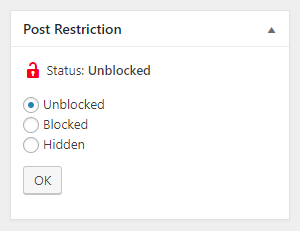
デフォルトで全ての投稿を閲覧制限するように設定しているがいくつかのコンテンツは誰でも閲覧できるようにしたい、そういう場合はどうすればよいでしょうか?標準の WordPressブロックエディタ (または「gutenberg」) では、投稿制限ボックスは「ドキュメント」ツールの下部にあります。WordPressクラシックエディタを使用している場合は、投稿およびページエディタ画面の右上隅にあります。これを使うことで投稿 (ページエディタの場合はページ) のデフォルト設定を上書きできるようになります。
たとえばデフォルトで投稿を閲覧制限するようにプラグインを設定している場合、個別の投稿に対して「無制限」を選択して閲覧制限を解除し、投稿を更新します。やるべきことはそれだけです。
投稿の制限ステータスには3つの選択肢が使用できます:
- 無制限 – この設定を使用すると、全てのユーザーが投稿を閲覧できるようになります。
- 制限付き – この設定では、その投稿の許可されている抜粋範囲 (「続きを読む」タグまたは自動抜粋設定のいずれかによる) を超える内容を表示するにはユーザーがログインする必要があります。
- 非表示 – この設定ではユーザーがログインしていない限りその投稿は削除されます。アーカイブテンプレートや検索結果にも表示されません。
個々の投稿を無制限や制限付きや非表示に設定することは、投稿 > 投稿一覧 画面から一括で行うこともできます。WP-Members によって投稿テーブルの上部と下部にある一括メニューに制限、無制限、非表示のアクションが追加されています。個別または複数の投稿を選択し、一括操作で設定を適用できます。

デフォルトとは逆の設定を持つ全ての投稿は、表の右側の列にそのように表示されます。たとえば投稿がデフォルトでは制限付きとなっている場合、列の見出しは「制限解除しますか?」となります。制限が解除された投稿には、その列に「はい」と表示されます。
原文を見る
What if you have set the default to block all posts by default but you have some content that you would like anyone to be able to view? In the standard WP block editor (or “gutenberg”), the Post Restriction box will be at the bottom of the “Document” tools. If you are using the WP Classic Editor, it will be in the upper right hand corner of the Post and Page editor windows. This will allow you to override the default setting you have for Posts (or Pages, when in the Page Editor).
For example, if you have set the plugin to block posts by default, you can select the option to unblock this individual post selecting “Unblocked” and updating the post. That’s all you need to do.
There are three options available for the post’s restriction status:
- Unblocked – with this setting, the post can be viewed by any user.
- Blocked – this setting requires a user to be logged in to view content beyond any allowed post excerpt (either by the “read more” tag or the Auto Excerpt setting).
- Hidden – this setting removes the post from existence unless the user is logged in. It will not show in any archive templates or search.
Setting individual posts as unblocked, blocked, or hidden can also be done in bulk from the Posts > All Posts screen. WP-Members adds block, unblock, and hide actions to the bulk menu at the top and bottom of the posts table. You can select individual or multiple posts and apply the setting with the bulk action.
All posts that have a setting opposite that of the default will be indicated as such in a column at the right of the table. For example, if posts are blocked by default, the column heading will be “Unblocked?” and any unblocked posts will have “Yes” in the column.
https://rocketgeek.com/plugins/wp-members/docs/managing-content/restricting-posts/
カスタム投稿メタ
このチェックボックスは以前のバージョンのプラグインにあったカスタムフィールド設定方法 (ポストメタ) に代わるものです。However, the information on the post meta custom field is discussed here because (a) that is what the checkbox setting is, and (b) you may need this information if you are seeking to do some custom programming that might display all free posts, or some other custom action such as putting an icon next to posts based on blocking status. These are things you would need to know how the meta fields are set so that you could filter accordingly.
設定されるカスタム投稿メタは「wpmem_block」です。 アンダースコア(“_”) はこの投稿メタがカスタムフィールドダイアログに表示されないことを示します。 この値が「1」だと閲覧制限され、「0」だと閲覧制限されません。
あなたの環境(version 2.9.8以前)に古い投稿メタの制限/制限なしの値が残っている場合、それらを手動で編集、変更、削除できます。
原文を見る
The checkbox takes the place of the plugin’s former method of setting a custom field (post meta). However, the information on the post meta custom field is discussed here because (a) that is what the checkbox setting is, and (b) you may need this information if you are seeking to do some custom programming that might display all free posts, or some other custom action such as putting an icon next to posts based on blocking status. These are things you would need to know how the meta fields are set so that you could filter accordingly.
The custom post meta that is set is “_wpmem_block”. The underscore (“_”) indicates that this post meta will not show in the custom fields dialog. A value of “1” is blocked, “0” is unblocked.
If old post meta values of block/unblock exist in your installation (pre version 2.9.8), you can edit, change, or remove them manually.
https://rocketgeek.com/plugins/wp-members/docs/managing-content/restricting-posts/
どのような設定を使用するべきか?
デフォルト設定を決める際は、あなたのサイトは閲覧制限しないコンテンツよりも閲覧制限するコンテンツの方が多いか、またはその逆かを考慮してください。それに応じてデフォルト設定を設定します。個別の投稿に対してデフォルト設定とは反対の設定を上書きすることもできます。
原文を見る
In choosing your default setting, consider whether more of your content will be restricted than unrestricted or vice versa. Set the default setting accordingly. Then you can override that for any posts that are opposite of the default setting.
https://rocketgeek.com/plugins/wp-members/docs/managing-content/restricting-posts/