WP-Members メンバーシップを使用すると、レベルや関連製品のヒエラルキー(上下関係)を作成できます。
メンバーシップのヒエラルキーは、固定ページなどの WordPress の他の機能と同様に「親/子」関係として考えることができます。 固定ページの場合はサブページを配下に持つ「親」ページを指定して設定できます。ちょうどそれと同じように、メンバーシップも同じやり方を行います。
この例ではゴールド > シルバー > ブロンズの関係について説明しますが、メンバーシップ名やそれぞれの上下関係はあなたの好きなように置き換えてください。それらは単に説明をイメージしやすくするための便宜上のものです。
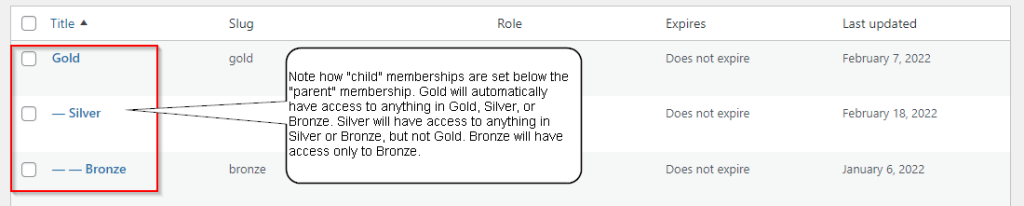
この例では、ブロンズはブロンズ メンバーシップに限定されているとマークされたコンテンツにのみアクセスできます。1レベル上のシルバーはシルバーまたはブロンズに限定されているあらゆるコンテンツマーケットにアクセスできます。そして一番上のゴールドは、ゴールド、シルバー、ブロンズに限定されているあらゆるコンテンツにアクセスできます。(制限付きとして設定されているがメンバーシップには割り当てられていないコンテンツについては、どのメンバーシップのログインユーザーでも閲覧できます。)
メンバーシップ表は以下のようになります:
メンバーシップの親関係を設定するには 2 つの方法があります。
原文を見る
WP-Members memberships allow you to create hierarchies for levels or for related products.
The membership hierarchy can be thought of as a “parent/child” relationship, just like other aspects in WordPress such as pages. Just like pages, where you might set identify a “parent” page for a subpage under it, memberships are the same approach.
This example will describe a Gold > Silver > Bronze relationship, but you can call your memberships whatever you want, and make their relationships whatever you want. This is merely for illustrative purposes.
In our example, Bronze will only have access to content marked as restricted to the Bronze membership. One level up, Silver would have access to any content market as restricted to Silver OR Bronze. And at the top, Gold has access to any content restricted to Gold, Silver, or Bronze. (Any content that is set as restricted, but not identified to a membership would be restricted to logged in users of any membership.)
Here is what that looks like in the membership table:
There are two ways to set the parent relationship for a membership.
https://rocketgeek.com/plugins/wp-members/docs/membership-products/membership-levels/
クイック編集を使用してメンバーシップ表から親関係を設定する
メンバーシップ表内のメンバーシップの上にマウスを移動すると「クイック編集」というホバーリンクが表示されます。これをクリックすると特定のメンバーシップを親関係に設定するために使用できる編集画面が表示されます(複数を選択して、一括操作編集オプションを使用することもできます)。 下の画像を参照してください:

原文を見る
If you hover over a membership in the table, you will see the hoverlink “Quick Edit”. This gives you an edit screen you can use to set the parent relationship for a specific membership (you can also select multiple and use the bulk action edit option). See the image below:
https://rocketgeek.com/plugins/wp-members/docs/membership-products/membership-levels/
メンバーシップのプロパティから親関係を設定する
メンバーシップ属性メタボックスで親メンバーシップを選択することで、メンバーシップのプロパティから親関係を直接設定できます。:

原文を見る
You can set the parent relationship for a membership directly in the membership properties by choosing the parent membership in the Membership Attributes meta box:
https://rocketgeek.com/plugins/wp-members/docs/membership-products/membership-levels/
子階層のメンバーシップによるアクセス
「 子階層のメンバーシップによるアクセス」オプションにチェックを入れると別のヒエラルキーが作成されます。このオプションは異なる有効期限が設定されているメンバーシップ用です (月間購読と年間購読が用意されている「ゴールド」メンバーシップなど) 。
このオプションを使用する場合は、まず親メンバーシップを作成して「 子階層のメンバーシップによるアクセス」にチェックを入れます。そして親にリンクするメンバーシップを有効期限ごとに作成します (子メンバーシップでは「子によるアクセス」にチェックを入れず、親のみにチェックを入れます)。ユーザーには有効期限に基づいて適切な子メンバーシップを割り当ててください。そうすれば有効期限が切れていない限りユーザーは親メンバーシップにアクセスできるでしょう。
注記: WP-Members Memberships for WooCommerce 拡張機能を通じて WooCommerce のメンバーシップを販売している場合は、WooCommerce の可変製品属性を使用して異なる有効期限を作成できるため、「子メンバーシップによるアクセス」オプションを使用する必要はありません。
原文を見る
The option “access by child membership” creates a different hierarchy. This option is for memberships that may offer different expiration periods (such as having a “Gold” membership that offers a monthly and annual subscription).
When using this option, create the parent membership first and check “access by child membership”. Then create a membership linked to the parent for each expiration period (do not check “access by child” for the child memberships – only the parent). The user should be assigned the appropriate child membership based on their expiration period, and they will be able to access the parent membership as long as they are not expired.
NOTE: if you are selling memberships with WooCommerce through the WP-Members Memberships for WooCommerce extension, you do not need to employ the “access by child membership” option because you can create different expiration periods with WC’s variable product attributes.
https://rocketgeek.com/plugins/wp-members/docs/membership-products/membership-levels/